
In order to disable cortana you will have to follow one of the guides showed below.
Do you find our CONTENT USEFUL? Please HELP US continue our labour by donating today!
Disable Cortana
Turn Off Cortana in Windows 10 Home
If you have Windows 10 Home Edition, you will have to edit the Windows Registry to make these changes.
1. Open Windows Registry
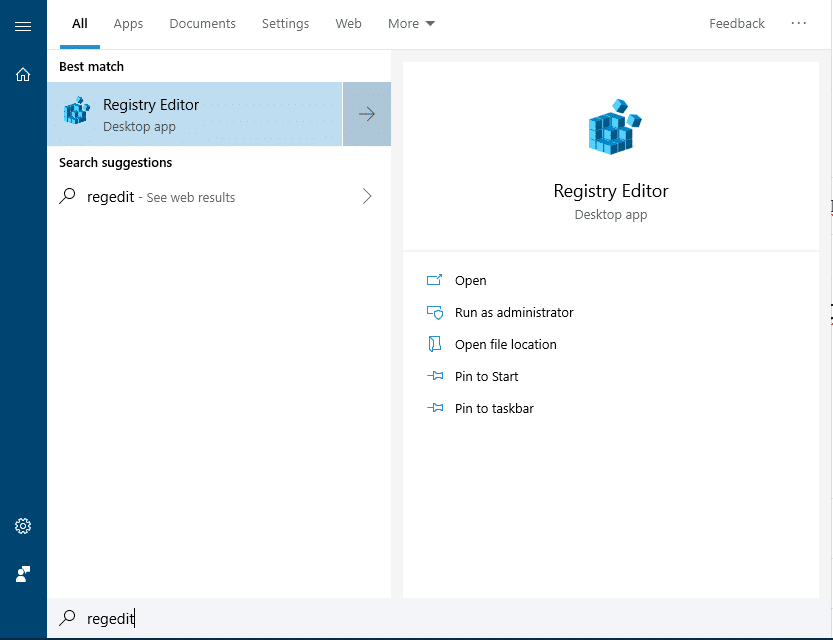
2. Go to HKEY_LOCAL_MACHINE\SOFTWARE\Policies\Microsoft\Windows
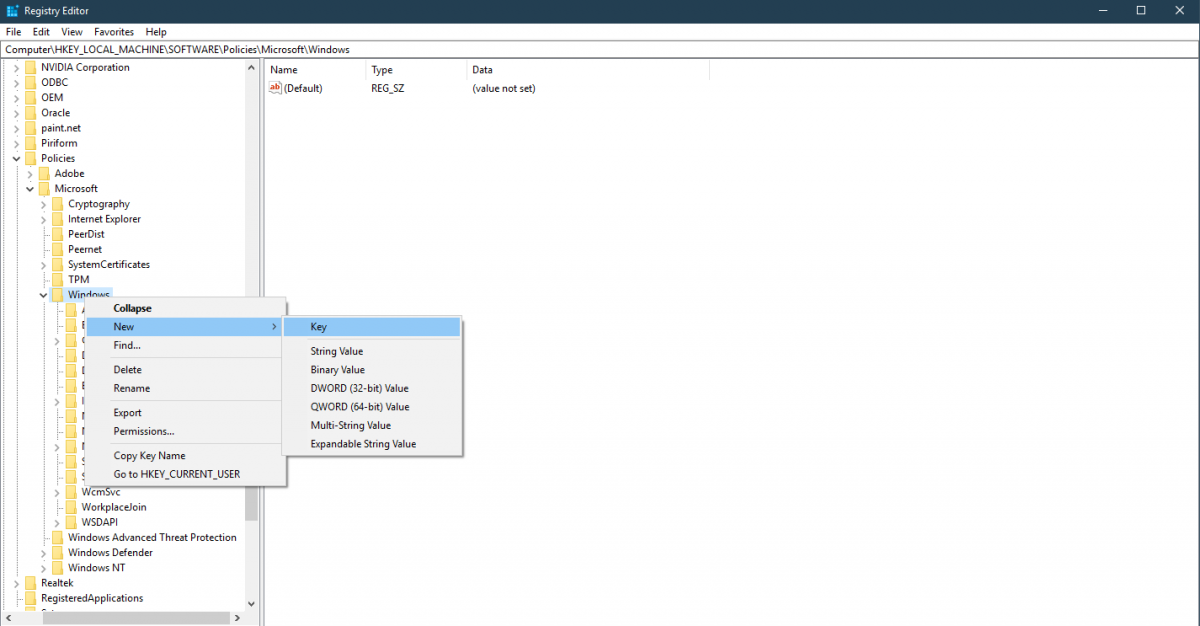
3. Check if there is a subkey named “Windows Search” under “Windows”. If there is, move to step 3. If that subkey does not exist, use the right click to create a new one called “Windows Search”.
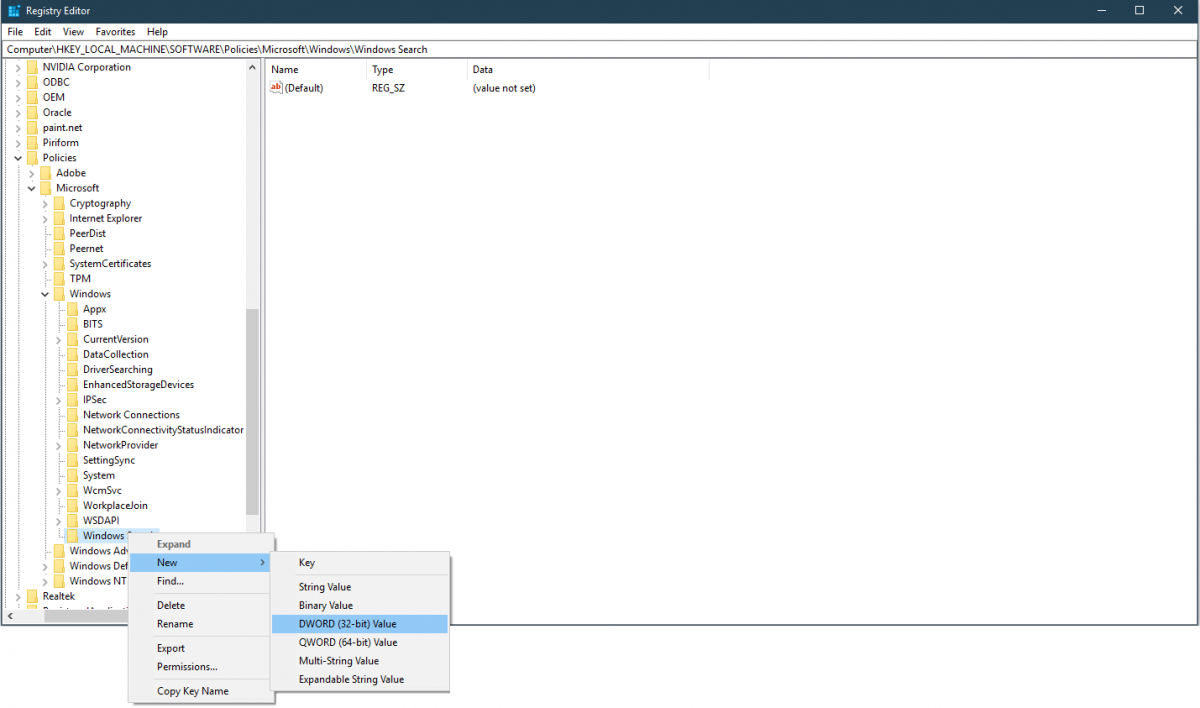
4. Right-click on the “Windows Search” subkey and select New > DWORD (32-bit) Value. Name the new DWORD value as AllowCortana.
5. Set AllowCortana value to 0.

6. Close and restart the computer.
Turn Off Cortana in Windows 10 Professional Edition
If you are using Windows 10 Professional (or Enterprise), the easiest way to disable Cortana is by using the Local Group Policy Editor.
1. Press the Windows logo key or click the Start Menu and then type “gpedit.msc“.
2. Navigate to Computer Configuration > Administrative Templates > Windows Components > Search.
3. Double click on AllowCortana entry and set it as disable.
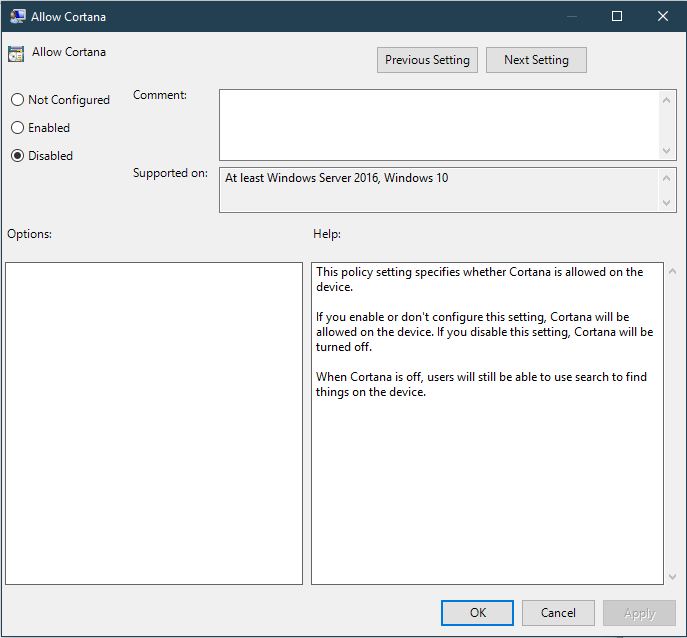
4. Close and restart the computer.
